
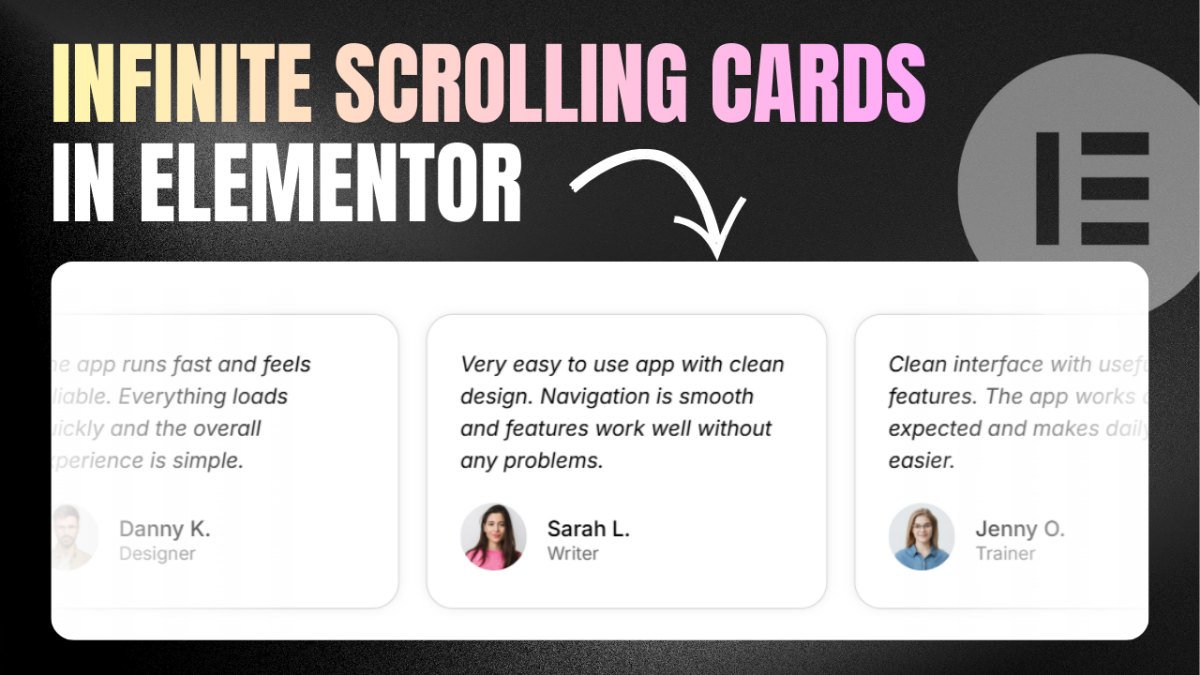
In this guide, I’ll show you how to create infinite scrolling cards with smooth fade overlays on both sides. The cards scroll automatically, pause on hover, and work well on mobile and tablet. You can also watch the tutorial provided at the end of this post.
Step 1: Create the Main Container
Start by adding a parent container.
- Set it to full width
- Adjust height as needed
This will hold everything.
Step 2: Add Wrapper Container
Inside the main container:
- Add another container
- Set some padding
- Add a custom class:
marquee-parent
This will be used for styling and fade overlays.
Step 3: Create the Scrolling Track
Now add another container inside the wrapper. Set the following:
- Direction: Row (Horizontal)
- Justify Content: Start
- Wrap: No Wrap
- Add a class:
marquee-track
This container will handle the scrolling animation.
Step 4: Add Card Items
Inside the scrolling track:
- Add multiple containers (these will be your cards)
- You can place anything inside them
Create at least 3 cards (you can add more later).
Step 5: Add the Scrolling Animation (CSS)
To make the cards scroll infinitely:
- Copy the CSS code provided below
- Add an HTML widget to the page
- Paste the CSS code inside it
<script>
document.addEventListener("DOMContentLoaded", () => {
    const track = document.querySelector('.marquee-track');
    if (!track) return;
    const items = Array.from(track.children);
    let singleSetWidth = 0;

    items.forEach(item => {
        const style = window.getComputedStyle(item);
        singleSetWidth += item.offsetWidth + parseFloat(style.marginLeft) + parseFloat(style.marginRight);
    });
    track.style.setProperty('--scroll-distance', `-${singleSetWidth}px`);
    const originalContent = track.innerHTML;
    const screenWidth = window.innerWidth;
    let currentWidth = singleSetWidth;
    while (currentWidth < (screenWidth * 3)) {
        track.insertAdjacentHTML('beforeend', originalContent);
        currentWidth += singleSetWidth;
    }
    track.classList.add('is-ready');
});
</script>

<style>
.marquee-parent {
    overflow: hidden;
    width: 100%;
}
.marquee-track {
    display: flex;
    width: max-content;
    gap: 0 !important;
    animation-play-state: paused;
}
.marquee-parent:hover .marquee-track {
    animation-play-state: paused;
}
.marquee-track.is-ready {
    animation: marquee-precision 5s linear infinite;
}
.marquee-track > * {
    flex-shrink: 0 !important;
    width: 300px; /* Set your card width */
    margin-right: 20px; /* Adjust this for spacing between cards */
}
@keyframes marquee-precision {
    0% { transform: translateX(0); }
    100% { transform: translateX(var(--scroll-distance)); }
}
</style>
Step 6: Add Fade Overlay Effect
To create the fade effect on both sides, add additional CSS code provided below.
<style>
.marquee-parent {
    position: relative;
    overflow: hidden;
    width: 100%;
}
.marquee-parent::before,
.marquee-parent::after {
    content: "";
    position: absolute;
    top: 0;
    bottom: 0;
    width: 150px; /* Width of the fade - adjust as needed */
    z-index: 2;
    pointer-events: none;
}
.marquee-parent::before {
    left: 0;
    background: linear-gradient(to right, #ffffff, transparent);
}
.marquee-parent::after {
    right: 0;
    background: linear-gradient(to left, #ffffff, transparent);
}
</style>
This creates a soft fade on the left and right edges, making the scroll look smooth and modern.
Step 7: Customize the Design
You can easily adjust the look and behavior:
To change the gap between the cards, change the margin-right property under .marquee-track > * and to change the width of the cards, the width property.
Adjust the scrolling speed by changing the value (5s) after marquee-precision under .marquee-track.is-ready. Increase the value to make it slow.
To change the color of the fade overlays, change the hex values in the background property.
YouTube Tutorial: