
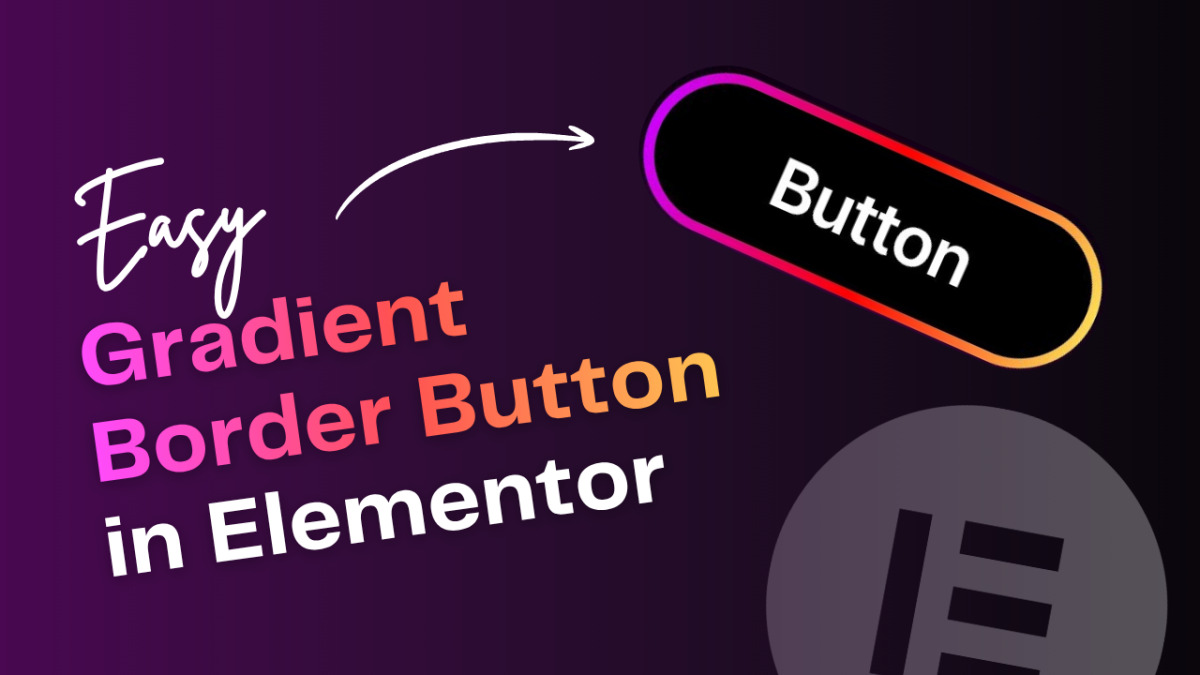
In this guide, I’ll show you how to create a clean button with a gradient border using a simple container method. This works great if you want your buttons to stand out without using custom code.
Step 1: Add a Button
Start by adding a container to your page.
- Drag a Button widget inside the container
- Update the text as needed
Now style the button:
- Set a background color
- Change the text color
- Adjust the font size
Step 2: Adjust Button Styling
To make the button look better:
- Set padding to 25px
- Set border radius to 10px
This gives the button a clean, rounded look.
Step 3: Create a Wrapper Container
Now comes the main trick.
- Add a new container above the button
- Drag the button inside this new container
Then:
- Set the container width to “max-content”
- Set border radius to 12px
This outer container will act as the gradient border.
Step 4: Add Gradient Border Effect
Now apply a gradient background to the outer container. Choose any gradient colors you like
You’ll notice that the container’s background appears like a border around the button.
To control border thickness, adjust the padding of the outer container. More padding = thicker border
Step 5: Add Hover Effects
To make the button more interactive:
For the container:
- Add hover gradient colors
- Use transform options (like slight scale or movement)
For the button:
- Change hover background color
- Adjust text color on hover
This adds a smooth and modern feel.
Final Result
You now have a button with a gradient border and hover effects, without writing any code.
This method is simple and flexible, and you can reuse it across your website with different color styles.