
Getting started with an Elementor template kit is a quick way to build a professional-looking website without designing everything from scratch.
Whether you downloaded a kit from the official library or another trusted source, importing it into your WordPress site only takes a few steps. Follow the guide below to set everything up correctly.
Before you begin, create a backup of your website before importing any template kit to avoid any data loss.
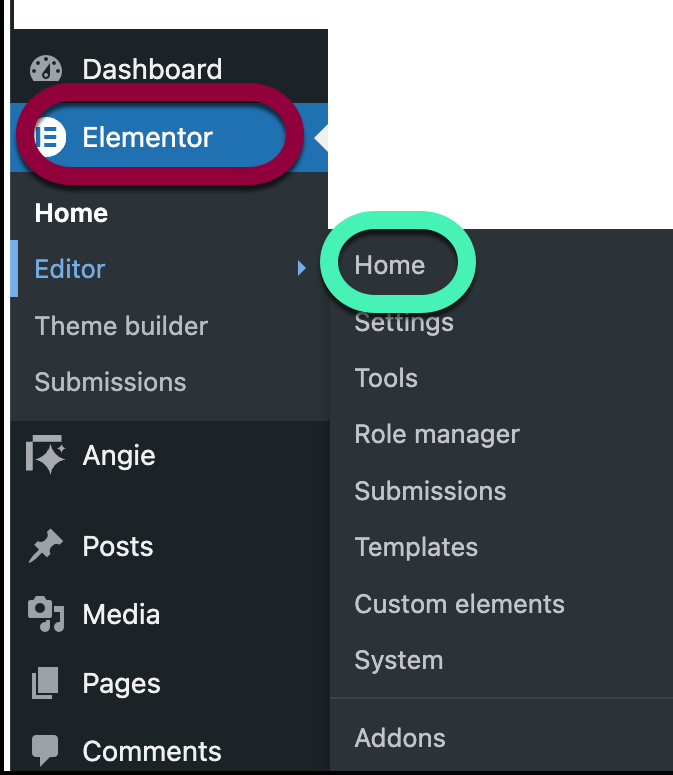
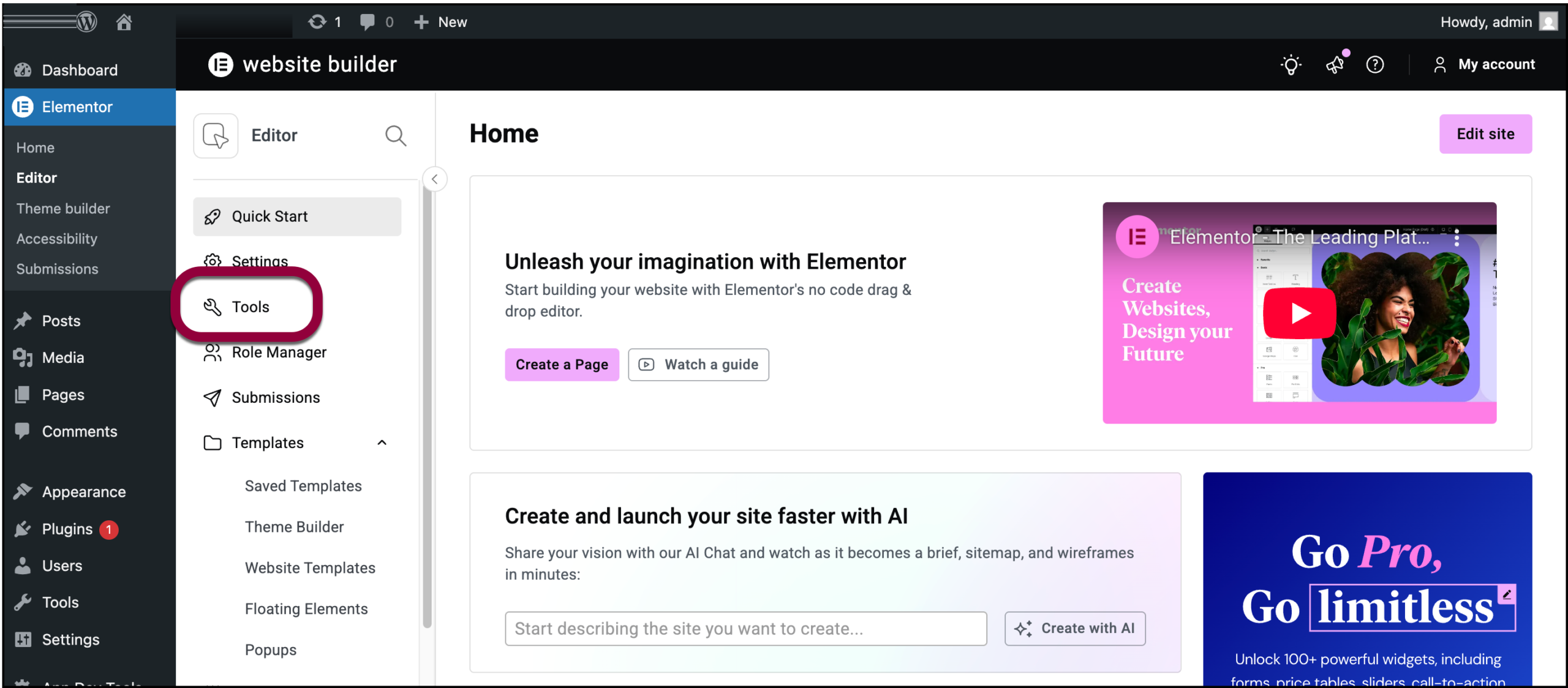
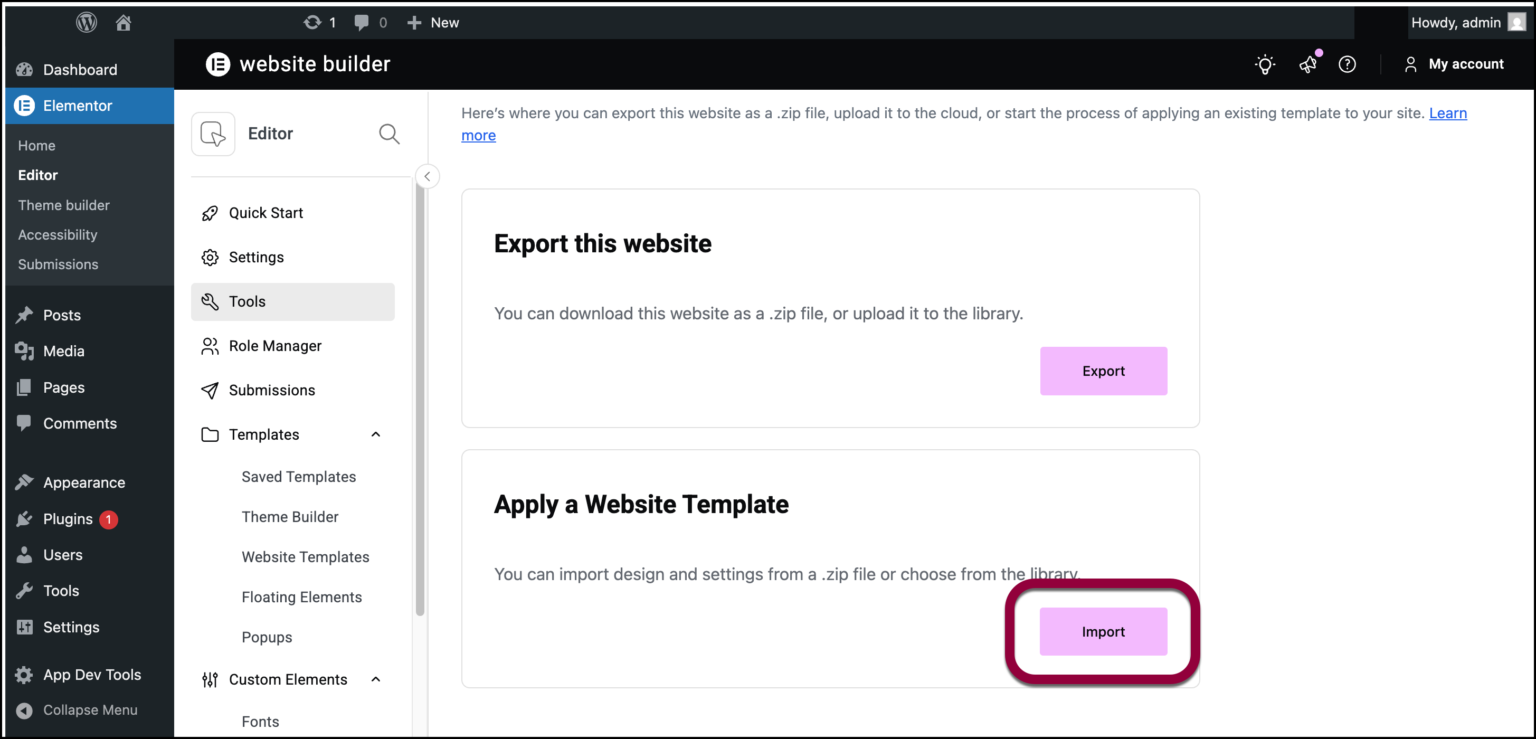
Step 1: Go to your WordPress dashboard and navigate to Elementor → Home, then click on Tools.
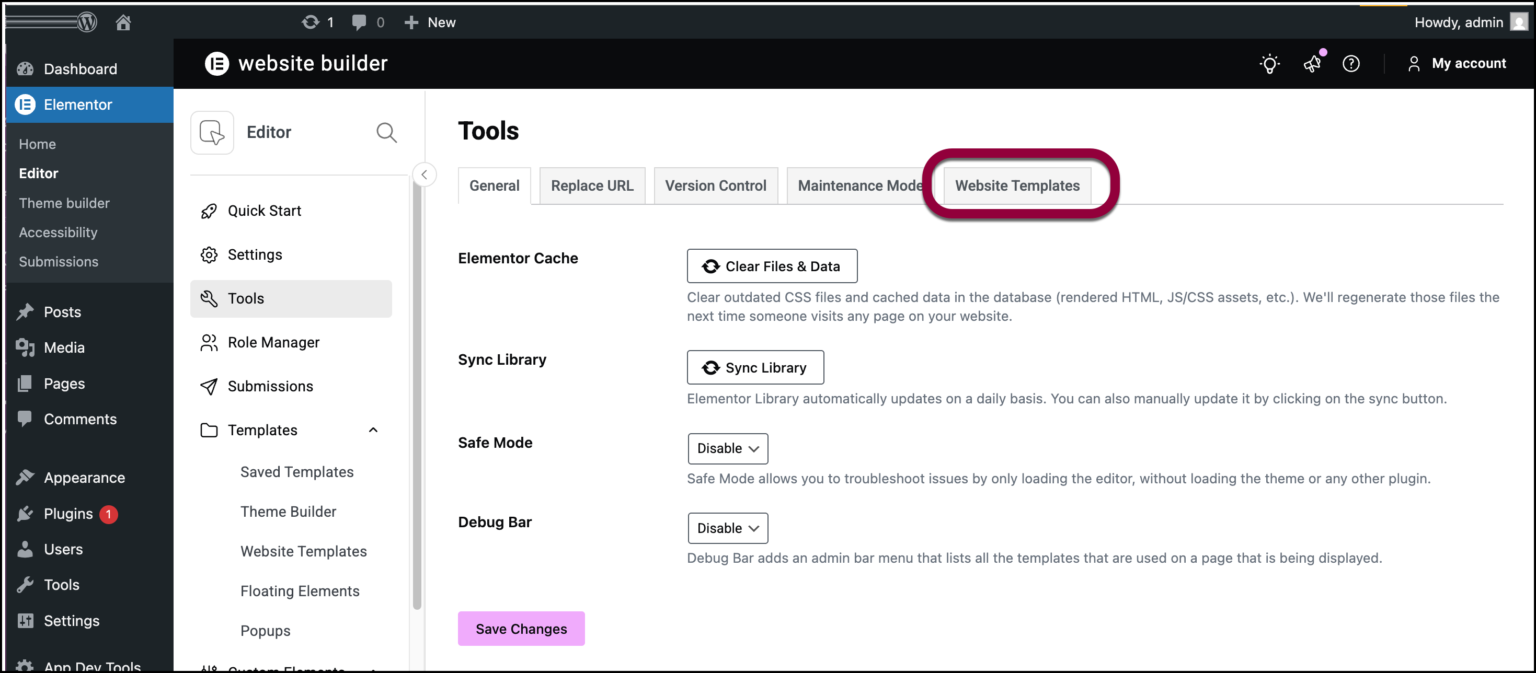
Step 2: In the Tools section, open the Website Templates tab.
Step 3: Click on the Import button to begin.
Step 4: Upload the ZIP file by dragging and dropping it into the upload area or by clicking Select File.
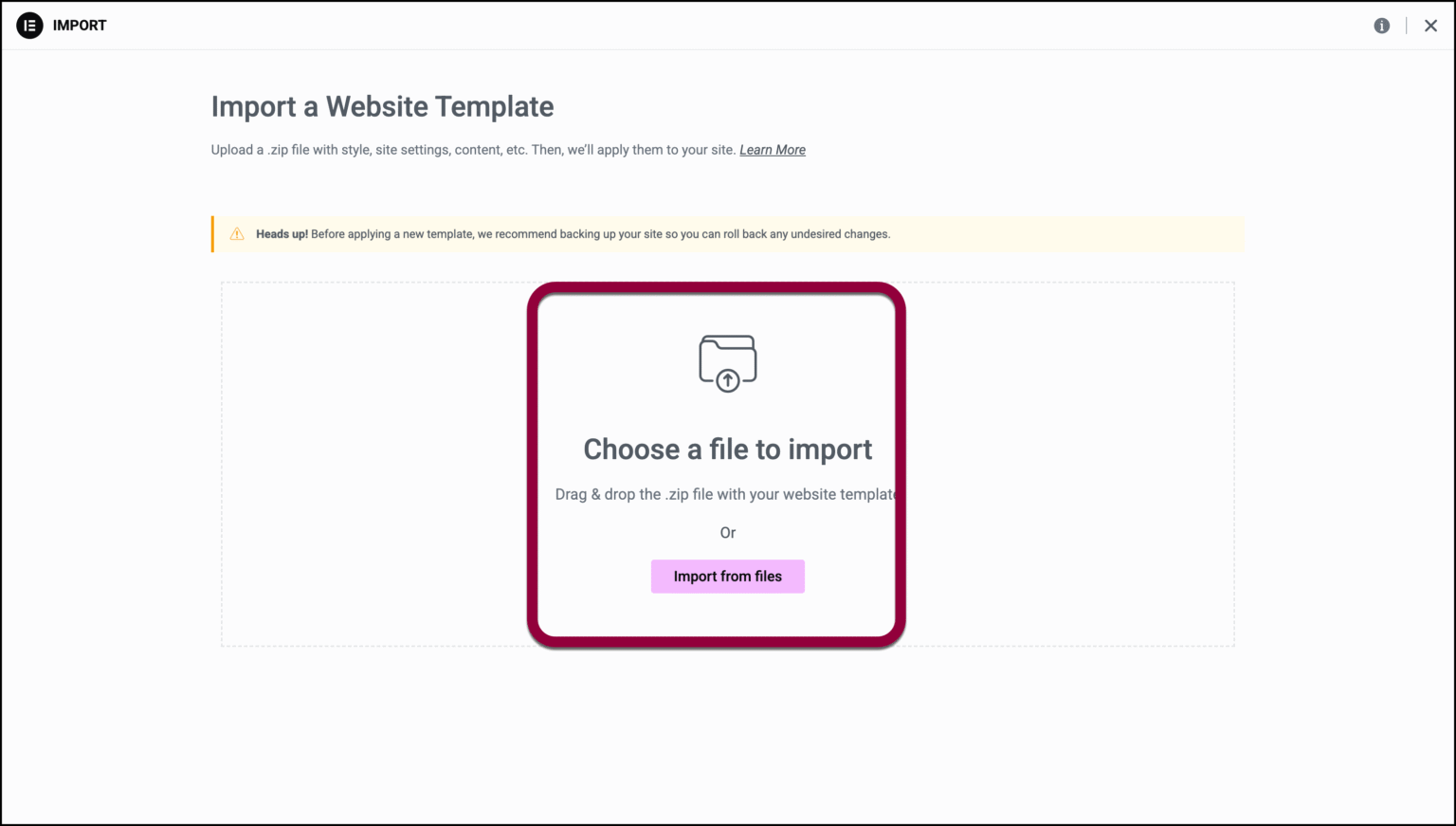
Step 5: If a warning about ZIP files appears, proceed only if the file is from a trusted source.
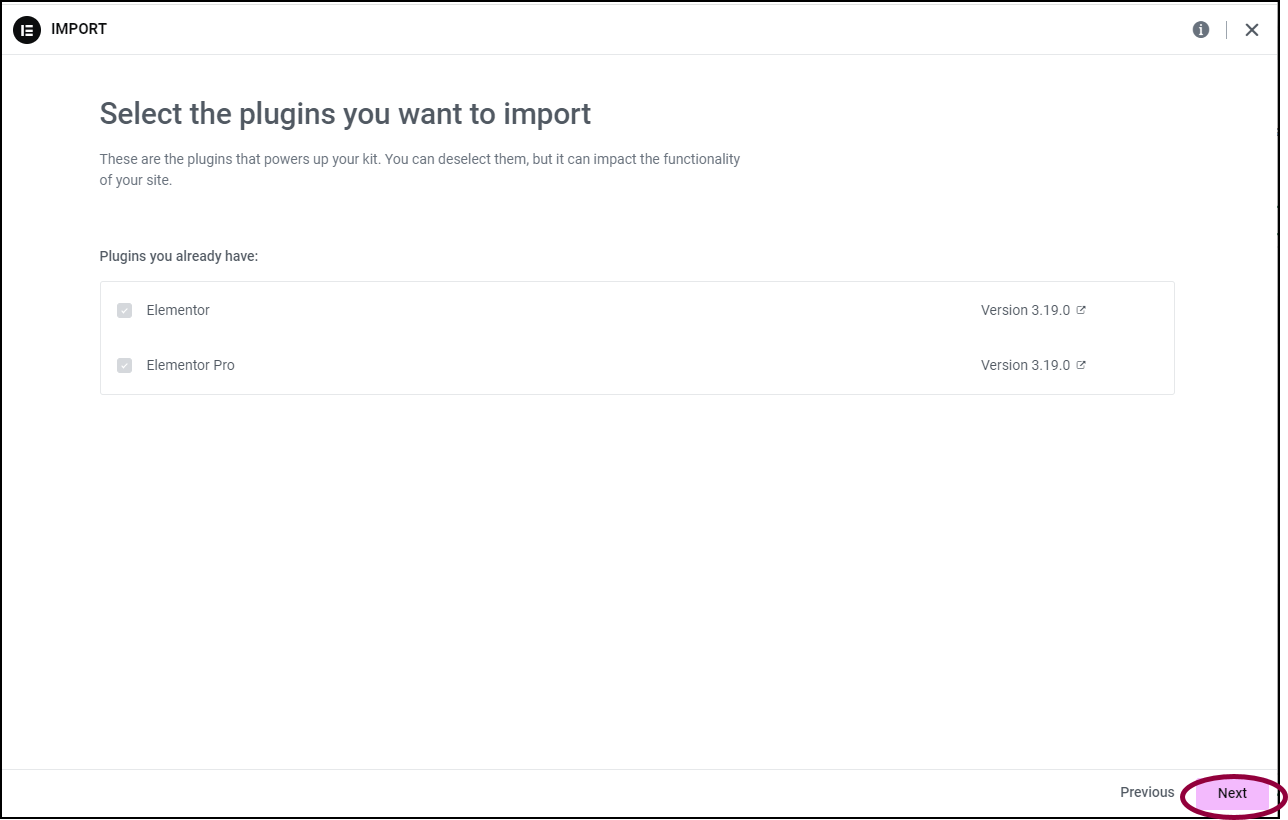
Step 6: Click Next after the file has been uploaded.
Step 7:
- Select Templates if you want to import headers, footers, and saved layouts.
- Select Content if you want to import pages, posts, and demo content like text and images.
- Select Site Settings if you want to import global styles such as fonts, colors, layout, and background settings.
- If you want the complete website exactly like the template kit, select all three options.
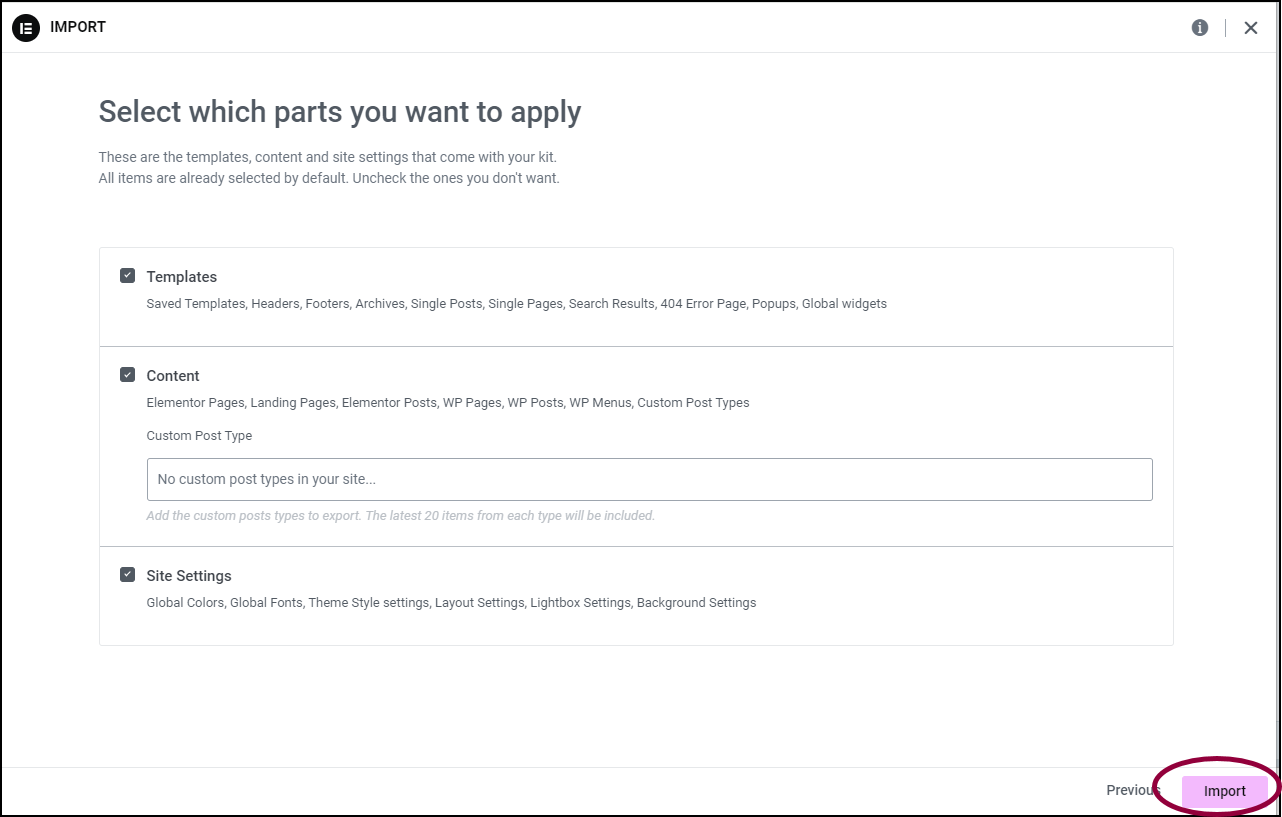
Step 8: Click on the Import button to start the import process. If prompted with an SVG warning, enable it only if you trust the template source.
Step 9: Once the process is complete, click Close.
After completing these steps, your template kit will be available on your site. You can now edit the pages, update content, and customize the design to match your needs. This makes it easy to launch a fully designed website in much less time.